Deploy NextGenPSD2XS2A API
This page provides instructions to deploy the NextGenPsd2XS2AFramework API. NextGenPSD2 Reference Toolkit provides the Account Information Service (AIS), Payment Initiation Service (PIS), and Confirmation on the Availability of Funds Service (FCS) via the NextGenPSD2XS2AFramework API.
-
Sign in to the API Publisher Portal at
https://<APIM_HOST>:9443/publisherwith the creator/publisher privileges.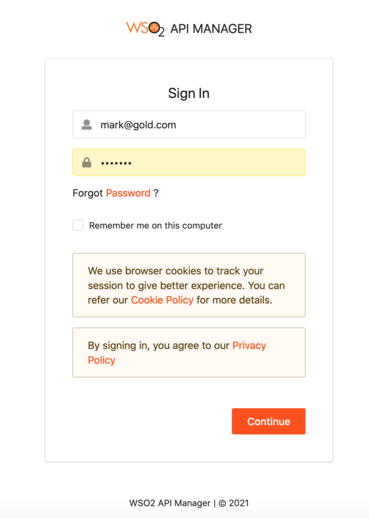
-
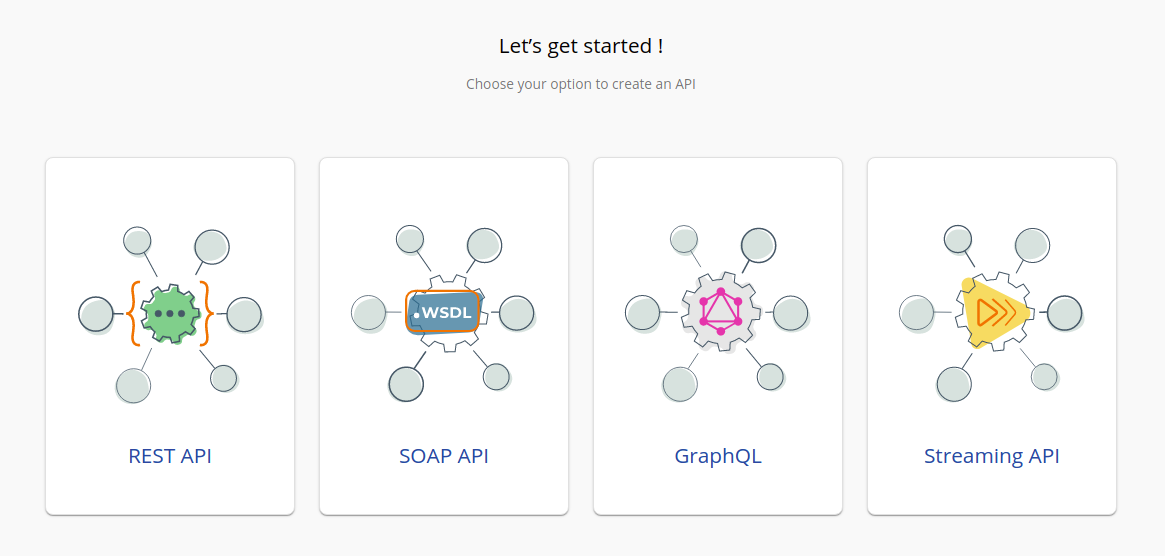
In the homepage, go to REST API and select Import Open API.
-
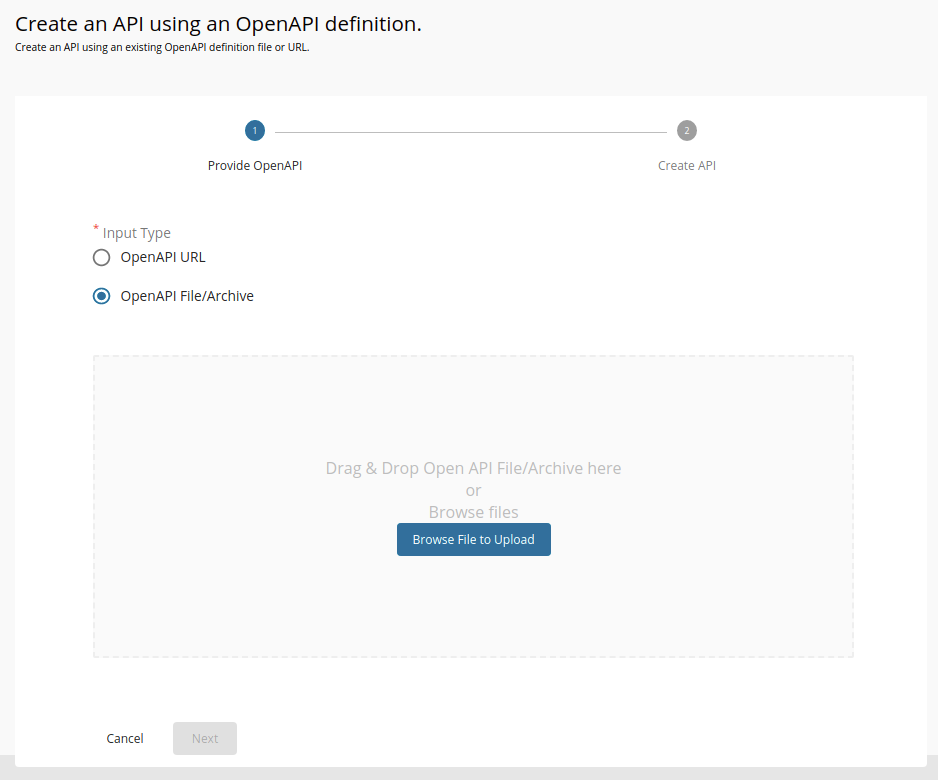
Select OpenAPI File/Archive.
-
Click Browse File to Upload and select the
<APIM_HOME>/<OB_APIM_TOOLKIT_HOME>/repository/resources/apis/berlin.group.org/PSD2API_1.3.6/psd2-api_1.3.6_20200327.yamlfile. -
Click Next.
-
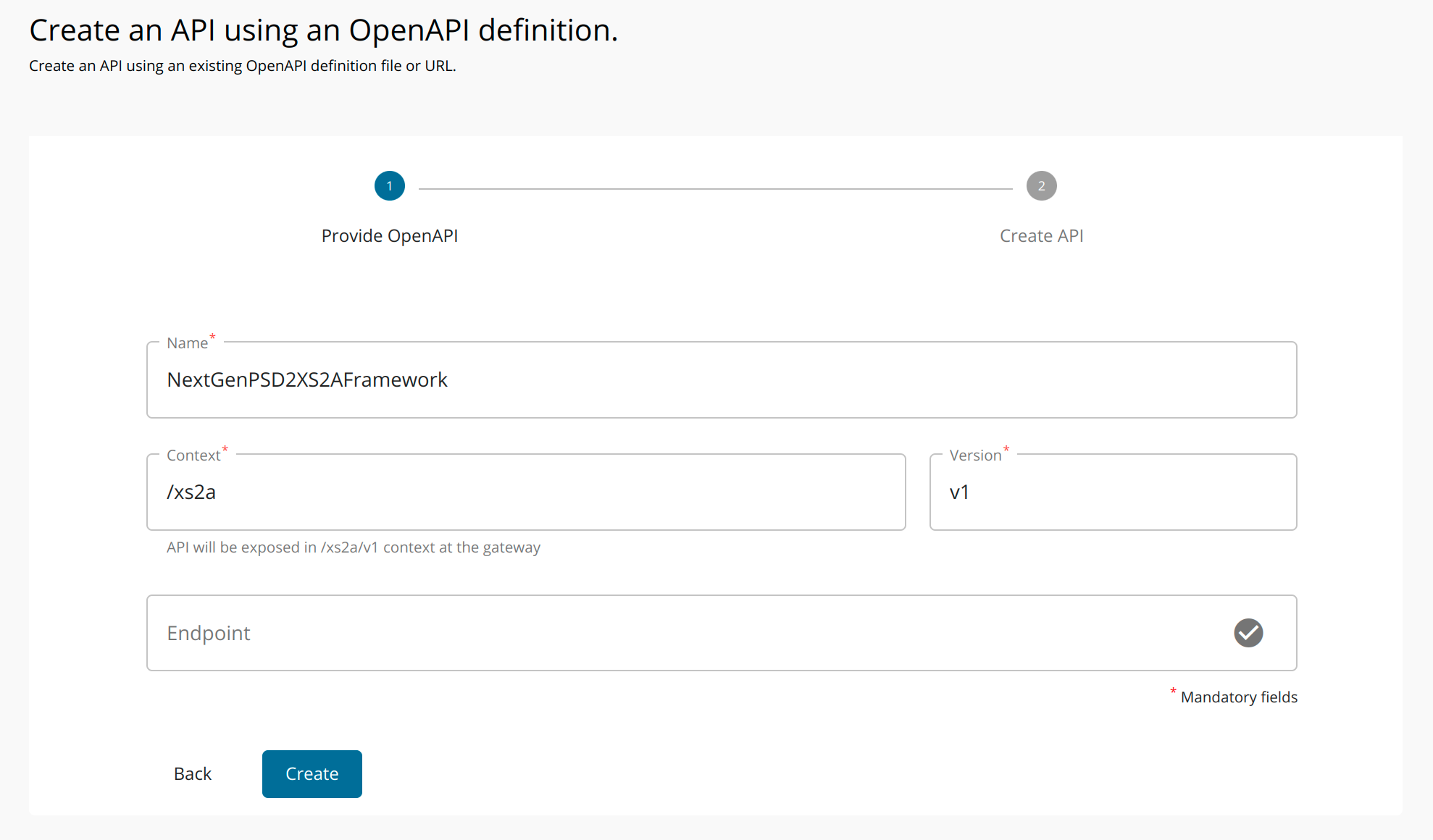
Set the context to
/xs2a. -
Remove the existing endpoint configuration and leave the field empty.
-
Click Create to create the API.
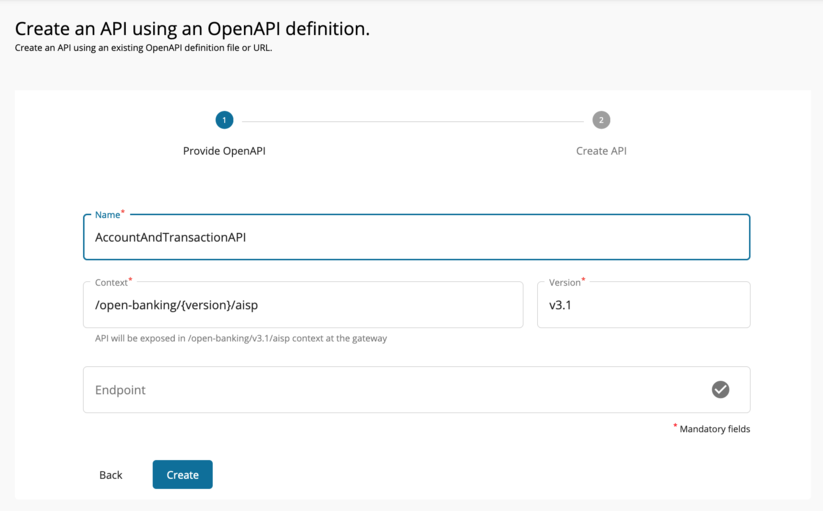
-
After the API is successfully created, go to Portal Configurations using the left menu panel.
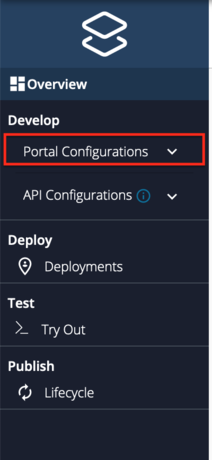
-
Select Subscriptions from the left menu pane and set the business plan to Unlimited: Allows unlimited requests.
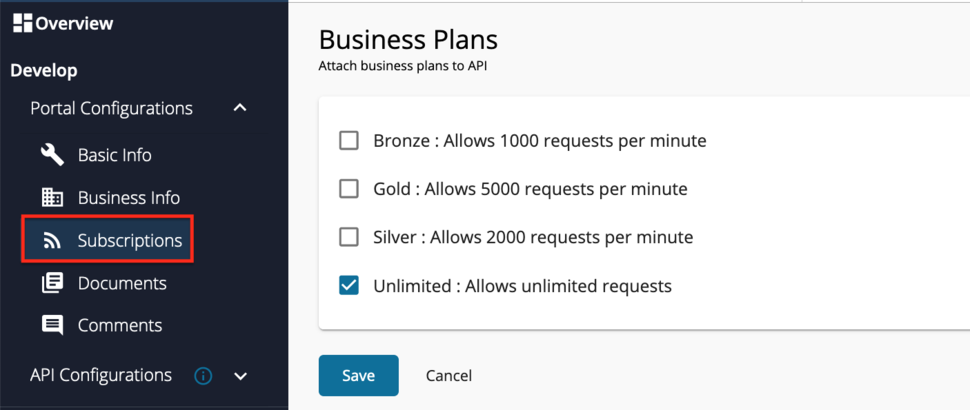
-
Click Save.
-
Select Runtime from the left menu pane.
-
Toggle the Schema Validation button to enable Schema Validation.
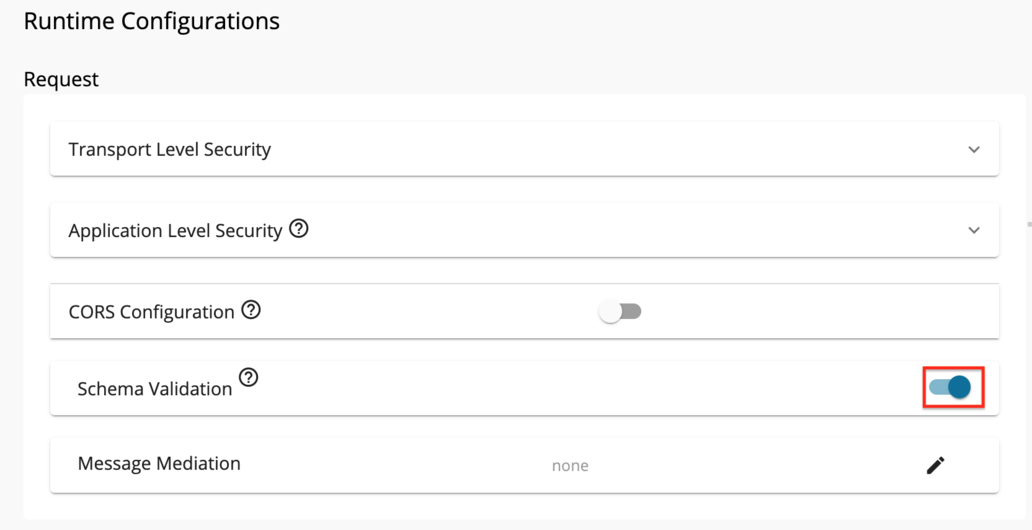
-
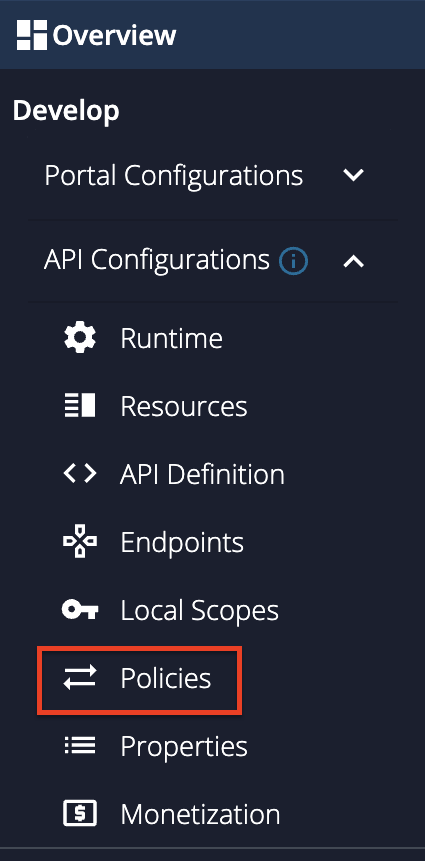
Go to Develop -> API Configurations -> Policies in the left menu pane to add a custom policy.
-
On the Policy List card, click on Add New Policy.
- Fill in the Create New Policy.
-
Upload the
<APIM_HOME>/<OB_APIM_TOOLKIT_HOME>/repository/resources/apis/berlin.group.org/PSD2API_1.3.6/dynamic-endpoint-insequence-1.3.6.xmlinsequence file.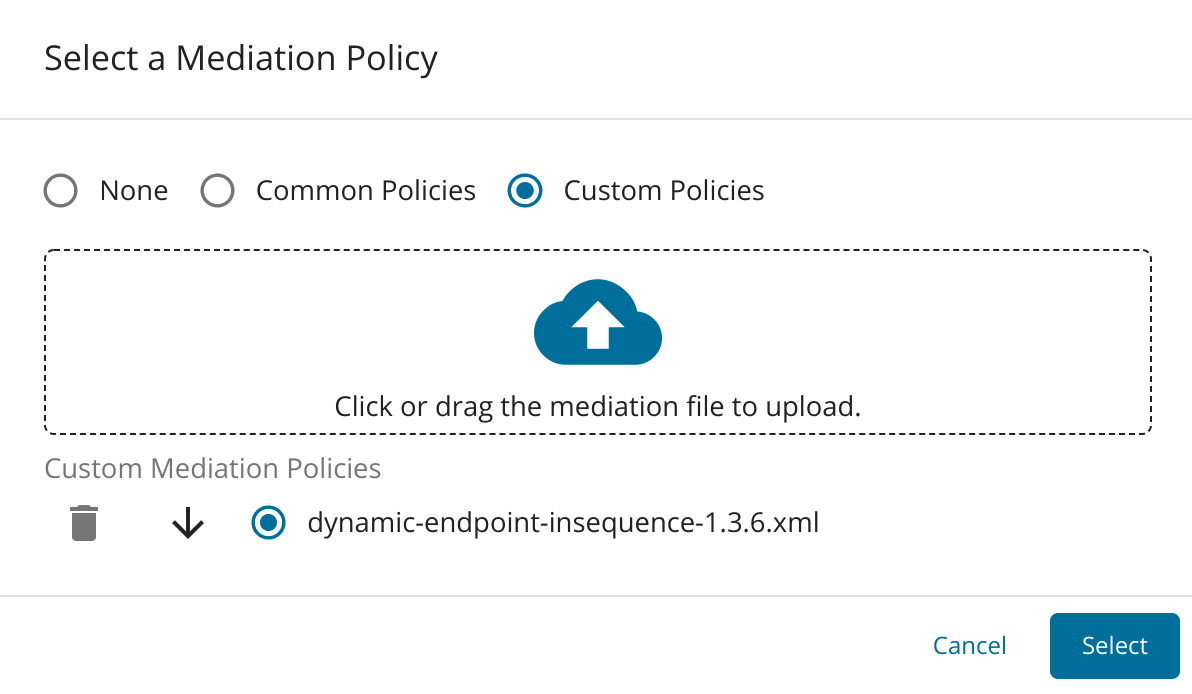
-
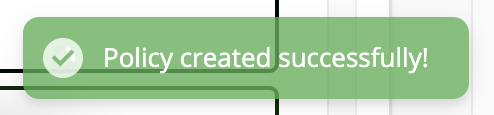
Scroll down and click Save. Upon successful creation of the policy, you receive an alert as shown below:
-
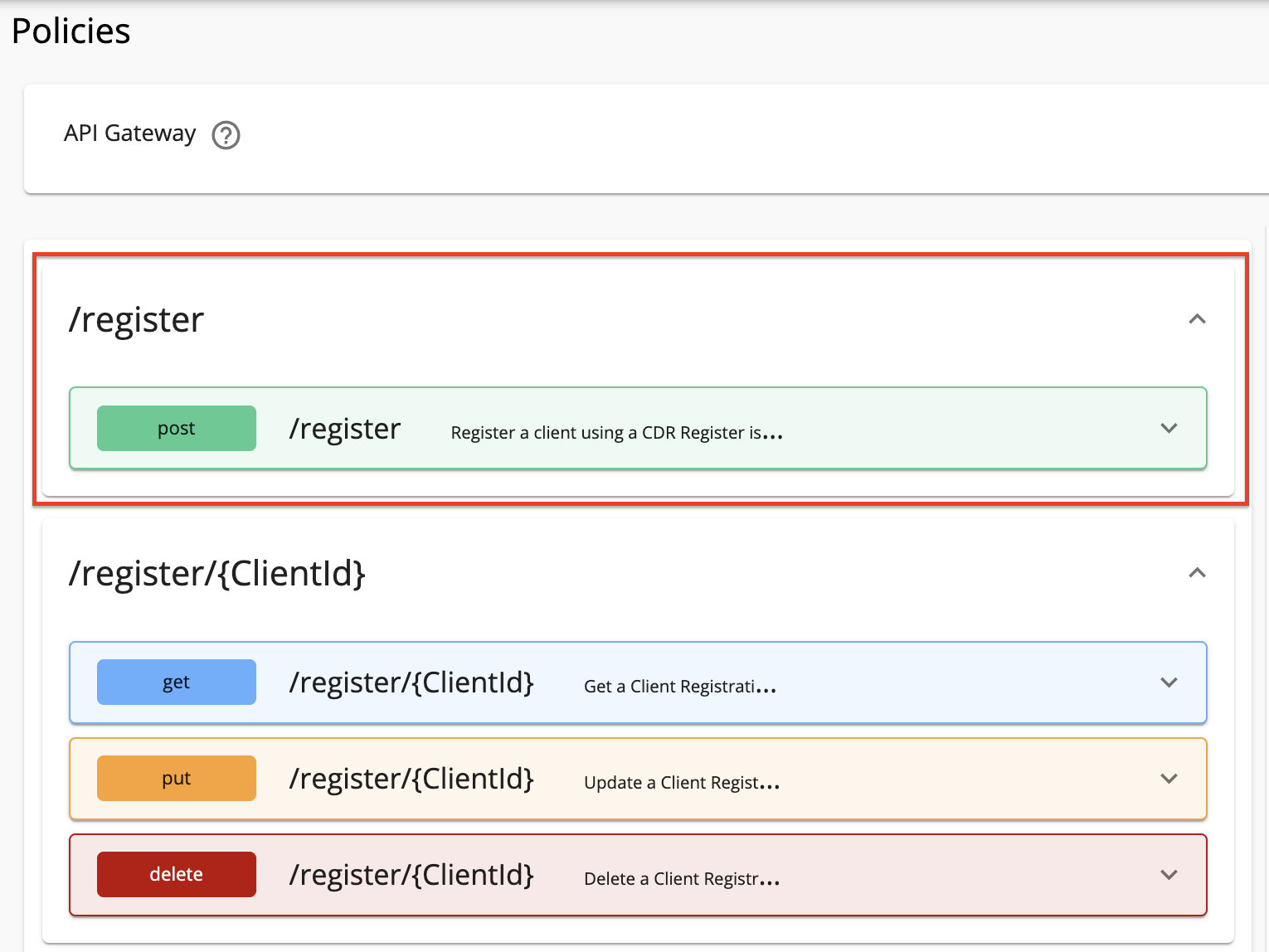
Expand the API endpoint you want from the list of API endpoints. For example:
-
Expand the HTTP method from the API endpoint you selected. For example:
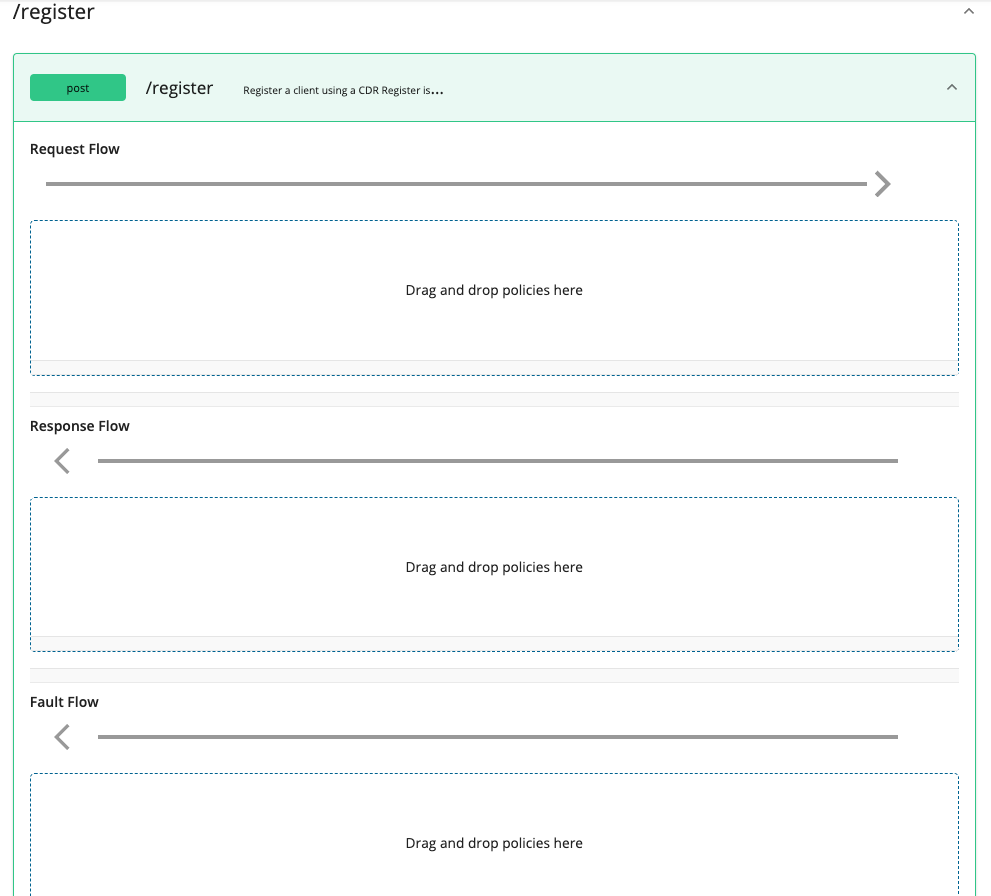
-
Drag and drop the previously created policy to the Request Flow of the API endpoint.
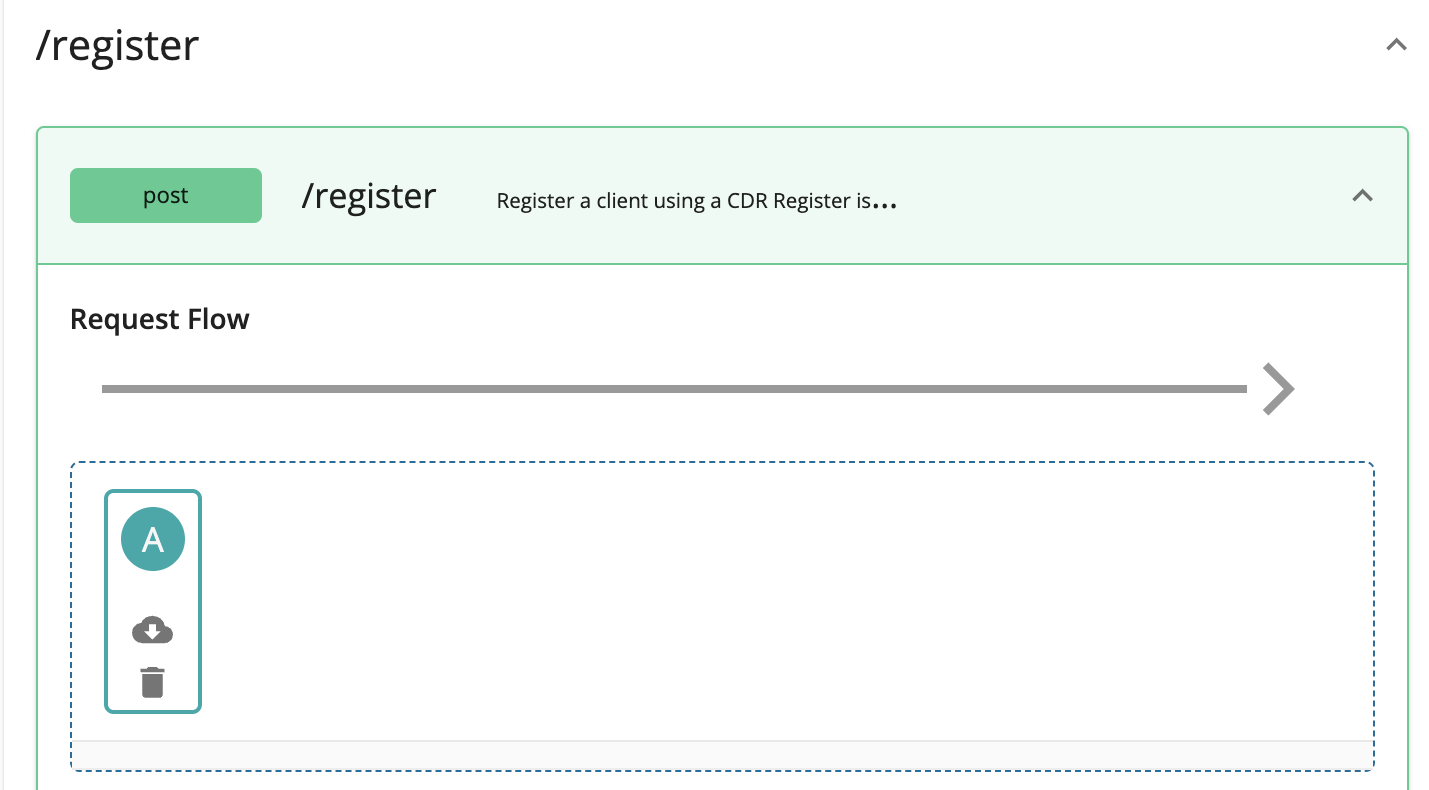
-
Select Apply to all resources and click Save.
-
Scroll down and click Save.
-
Use the left menu panel and go to API Configurations > Endpoints.
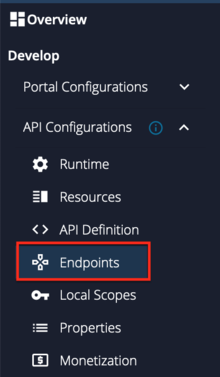
-
Add a Dynamic Endpoint.
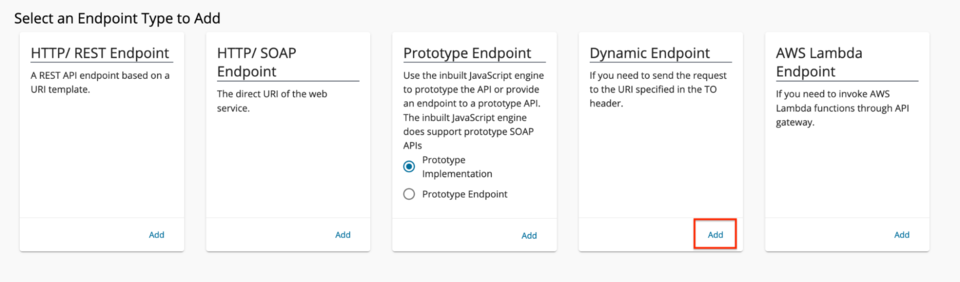
-
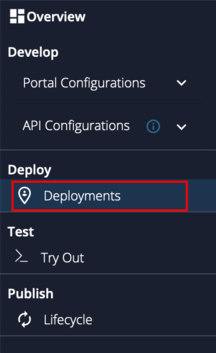
Go to Deployments using the left menu pane.
-
Select the API Gateway type, in this scenario, it is Default.
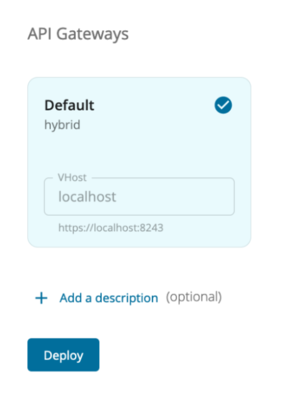
- Click Deploy.
-
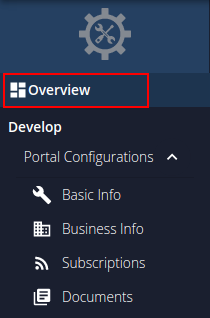
Go to Overview using the left menu pane.
 30. Click Publish.